
Ghent PDF Output Suite

How to process the Ghent PDF Output Suite with Apogee 15.0
ReadMe
This page can be downloaded as a PDF.
Introduction
The Ghent PDF Output Suite is created by the Ghent Workgroup, also known as GWG. This is an international organization made up of graphic arts users, associations, educational institutions & developers building best practices for print and packaging workflows.
The Ghent PDF Output Suite is created for people processing PDF files, to help determine whether their workflows are behaving as expected. It can be download from their website: Ghent PDF Output Suite.
The test suite will test real world issues that can be found in a production environment.
The following failures are detected:
-
• Color/visual mismatch: raster pixel diffs above tolerance.
• Separation/spot errors: missing/extra separations, lost spot colors, incorrect conversions.
• Overprint/flattening faults: overprints ignored, knockouts, halos, or wrong transparency blending.
• PDF/X or OutputIntent faults: missing/incorrect profile or conformance violations.
• Missing/misplaced marks, crop/bleed offsets, font substitutions, corrupted pages/resources.
Prerequisites
To process the Ghent PDF Output Suite as described in this document, you need to have an Apogee system where the Apogee Preflight TP is installed.
Apogee job/hot ticket settings
There are 2 crucial sets of parameters that need to be set correctly to process the GWG test suite flawlessly:
-
• Apogee Peflight settings
• PDFRender CMS settings
Apogee Peflight
On top of the Initial parameter set that includes the ap_Input tagging(Basic) action lists, you need to select the ap_Detect Content Colors and the ap_Fix PDFInconstitencies action lists.
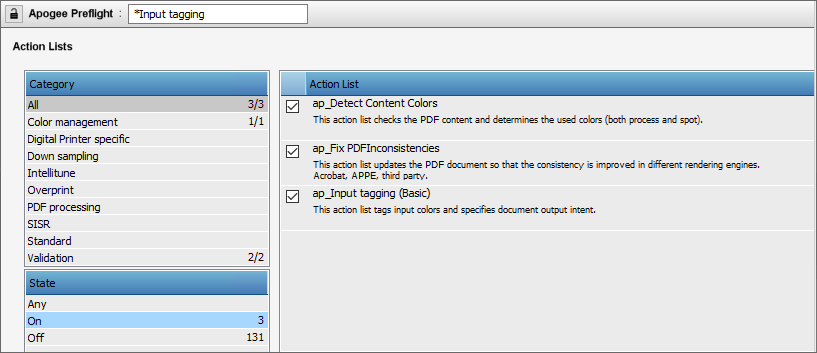
Why is ap_Detect Content Colors needed?
This action list analyzes the PDF’s content to identify all colorants used in the document. Detecting these colors improves the accuracy of features such as ‘Do not output empty separations’ and other color-related results (e.g. color marks). The detected colors are passed to other Apogee components through an internal resource information object, which is not visible to the user.
Why is ap_Fix PDFInconsistencies needed?
Objects in a PDF file can have a different rendering behavior (depending on the production settings in your workflow) compared to the result in other PDF viewers (Acrobat, etc…). The rendering behavior is influenced by, for example separate job settings (keep – convert) or image settings. To overcome this, it is sometimes necessary to inspect the PDF file and solve any ambiguous PDF construct. This action list applies targeted repairs to ambiguous or malformed PDF constructs that otherwise yield differing renderings between viewers. Typical repairs include: normalizing inconsistent color-space declarations, fixing broken resource references, resolving common transparency/SMask/clipping anomalies, and coercing ill-formed Separation/DeviceN definitions where safe.
PDFRender
Separate settings
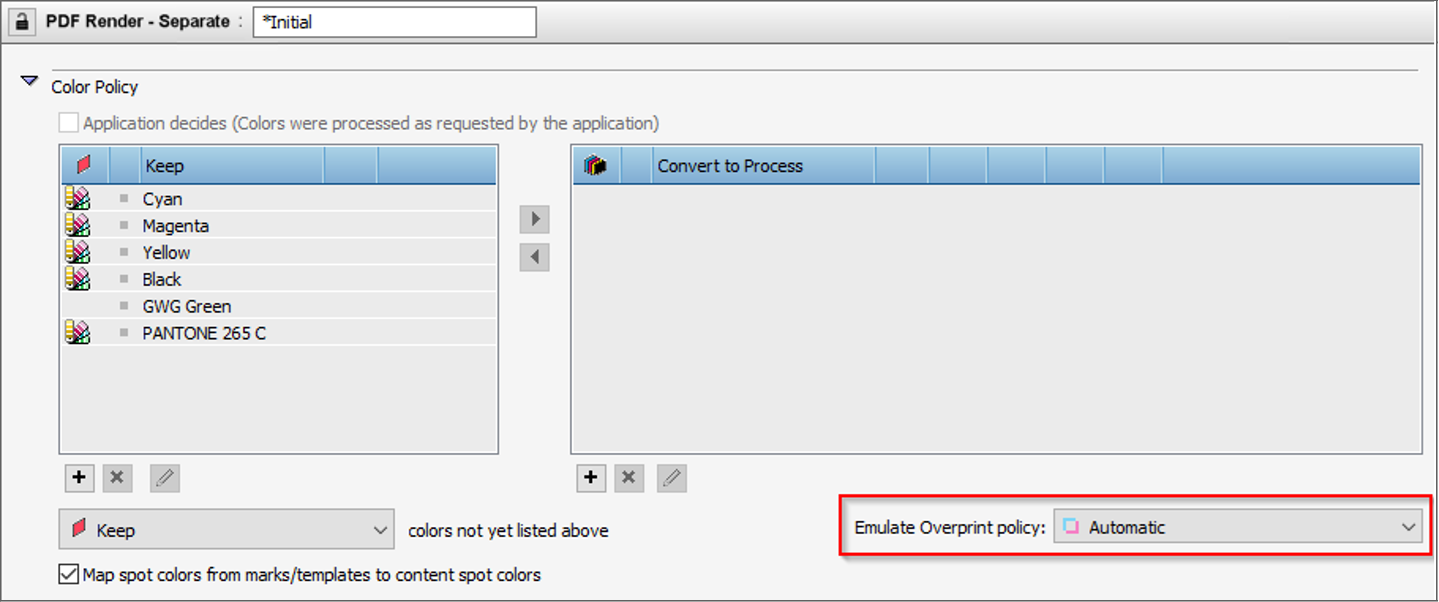
The test suite can be rendered with both ‘Convert’ or ‘Keep’ policies for the included spot colors. Since Apogee Preflight controls Emulate Overprint it is important that you don’t change the default setting “Automatic”.
Color Management settings
The default PDFRender CMS settings can be used: Document Based with or without output color conversion including InkSave and Press Repurposing.
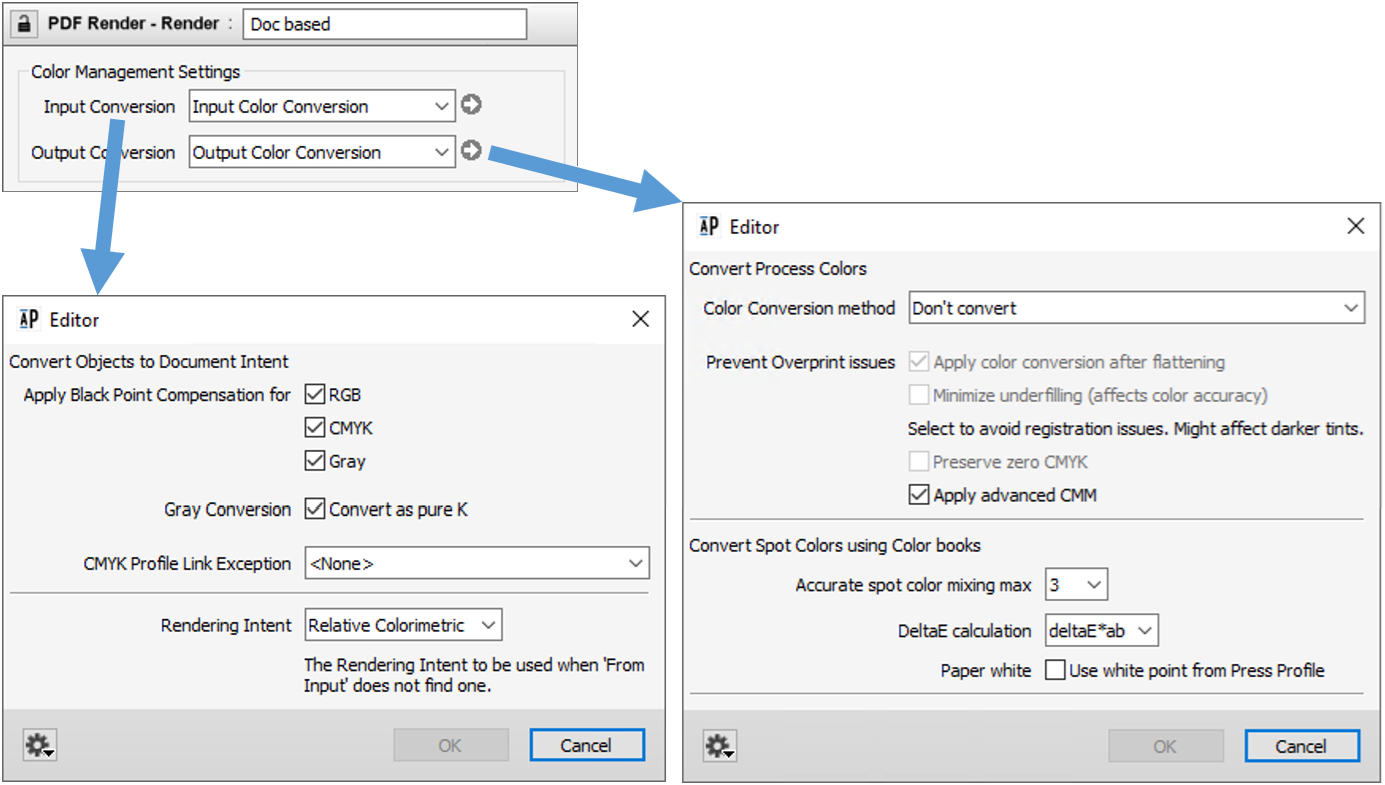
PDF/X clearly defines how objects within a PDF can be defined in terms of color settings and how consuming software should apply color conversions on the object with the PDF. In this step it’s crucial that the output intent profile serves as destination profile and ideally should be the same as the actual press profile. To enable correct processing the PDFRender uses “Document based CMS” mode because it guarantees that the PDFRender converts the input document correctly to the document output intent. As of Apogee Prepress v15 there is no other CMS mode than “Document Based” available. The Input Color Conversion honors all the embedded attributes, like: color profiles, overprint settings, transparencies, layers (more precisely PDF optional content groups –OCG). Document based CMS ensures that all these attributes behave as expected by the designer. The result can be compared to the visual result of Adobe Acrobat Pro with “Simulate Overprint” enabled (Tools\ Output Preview).
Output color conversion after flatteningFor Apogee Prepress v15 the supported workflow performs color conversion after flattening (post-flattening conversion), ensuring overprint, mixing of the converted spot colors and transparency resolution occurs before InkSave / Press Repurposing or output profile mapping. So the GWG PDF output suite can safely be converted towards any press color space while rendering all the technical elements correctly. Of course, output color conversions can be disabled.
Results of correct rendering
Test objects should be equal to the reference image and no ‘X’ should appear on the output.