Distortion
The Distortion palette allows you to control the distortion view. When enabled, it shows the compensated image based on the current settings in the Distortion palette.
You can toggle between the distorted and not-distorted views. To view the distortion, you must zoom in higher resolutions.
NOTE: This option is only available for Security jobs and requires a special license.
To view the Distortion
 Select the Preview window which contains the image you want to view the distortion. Choose Window > Palettes > Show Distortion to open the Distortion palette or press CTRL+ALT+D.
 OR
Choose Window > Palettes > Show Tools to open the Tools palette and click Distortion tool button.  |
OR
Choose View > Distortion, or press ALT+G.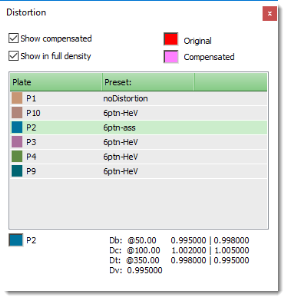 |
In distortion mode, only one separation is visible at a time. You can choose which separation to view either by selecting it in the Distortion palette or by clicking the eye icon in the Inks palette. The Inks palette enforces that only one separation can be viewed at a time.
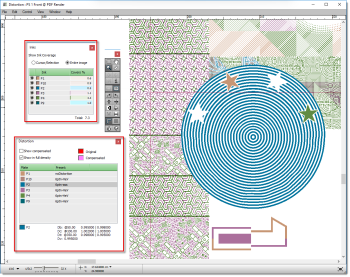 |
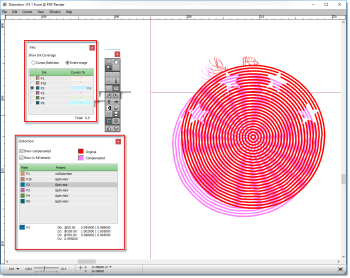 |
doc. version 14.0.1