Automate Settings
Automate uses a series of if/then conditions (cases) to test and direct a page, document or job to the next action, to output or to continue the case. When you create a new Automate parameter set from scratch, the list of cases on the left is empty and you will click the Add button to add one or more cases to the list. Then you can specify the conditions for each case in the two panels on the right.
Test and direct
Here you choose whether you want the condition to apply to a page, a document or the job. This parameter is set for all the cases in the list and must also be supported by the position of this TP in the Plan.
Cases
The cases panel on the left lists the series of conditions that are executed consecutively according to the list. You can add, duplicate, delete and change the order of cases in the list. Select the Submit notification with test results if you want to track the cases and be notified if a case fails.
If
In the If panel on the right you can set one or more criteria for the case. First specify how strict the condition for the case is:
•When all criteria are met
•When some criteria are met
•When no criteria are met
Then add your criteria to the list by clicking the Add button. You can duplicate, delete and change the order of criteria in the list.
Variable
Click in the cell to see a list of all the available variables and choose a variable. Start typing in the cell to search for a particular variable. The variables you see here come from various sources that you can set up.
Test
Click in this cell to see the Test criteria (e.g. equals, does not equal) and choose one. The criteria depend on the selected variable. A test can also be a regular expression.
Regular Expressions:
A text string can be matched (typically the document file name) with a regular expression. Regular expressions are much more flexible than "Apogee file name templates".
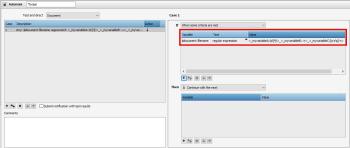 |
Example of a regular expression:
•<_myvariableA:\d{4}>_<_myvariableB:.+>_<_myvariableC:[a-z\s]+>
The texts between the "<" and ">" characters are Custom Variables and therefore they start with an "_". The regular expression "[a-z]" means a string existing out of 1 character of the (lower case) alphabet.
NOTE: Apogee is case insensitive regarding to file name matching.
The expression "[a-z\s]" includes also spaces and the expression "[a-z\s]+" would mean that the string can be made out of multiple characters from the alphabet including spaces. The string "garden" would match, "gardendiamonds" also as well as "garden diamonds".
Explanation of the used variables:
•<_myvariableA:\d{4}>: $_myvariableA must contain exactly 4 digits
•<_myvariableB:.+>: $_myvariableb can contain multiple characters of any kind
•<_myvariableC:[a-z\s]+>: $_myvariableC can contain multiple alfabetical characters including spaces
File 1065_this is a test1_Abc.pdf will pass the test and the following variables will be set:
•$_myvariableA: 1065
•$_myvariableB: this is a test1
•$_myvariableC: Abc
File 1065_this is a test1_500.pdf will fail the test because $_myvariableC contains digits (Instead of only alfabetical characters).
Value
Click in this cell to see the Value to be met by the criteria (e.g. Error, OK, Warning) and choose one. The criteria depend on the selected test.
Then
In the Then panel on the right you specify the action to be followed if the criteria are met:
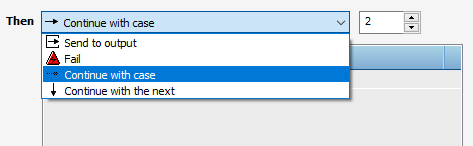 |
•Send to output: sends the result being tested to the output specified in the drop-down list; the output is a flow in your Production Plan
•Fail: stops the testing and generates an error
•Continue with case: continues testing with the case specified in the drop-down list
•Continue with the next: continues testing with the next case in the list
The respective icons appear in the Cases list.
doc. version 14.0.1