PackIQ Settings
This dialog box allows you to view and edit the PackIQ settings.
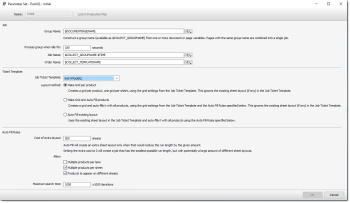
Job
These settings determine how PackIQ collects the incoming pages and how the resulting job is named.
Group Name
Specify one or more page or document variables to construct a group name (available as $COLLECT_GROUPNAME).
Process group when idle for
Specify the time (in seconds) that PackIQ waits for a next idle for page before it starts processing the job. Default: 180 seconds.
Job Name
Specify the name template for the submitted job.
Default: $COLLECT_GROUPNAME $TIME.
Default: $COLLECT_GROUPNAME $TIME.
Order Name
Specify the template for the order number of the submitted job. Default: $COLLECT_TEMPLATENAME.
Ticket Template
Job Ticket Template
Select the packaging Ticket Template to use. The Ticket Template defines all settings of the job to be created, including the device, media and imposition parameters. PackIQ shows a summary of the most relevant parameters of the selected template (Press, Sheet size, Grid settings, Existing Layout, Products present).
Layout method
Select which imposition method PackIQ uses. Methods that are not available for the selected Ticket Template are disabled.
•Make Grid per product: Creates a grid per product, one grid per sheet, using the grid settings from the Job Ticket Template. This ignores the existing sheet layout (if any) in the Job Ticket Template.
•Make Grid and Auto Fill products: Creates a grid and auto-fills it with all products, using the grid settings from the Job Ticket Template and the Auto Fill Rules specified below. This ignores the existing sheet layout (if any) in the Job Ticket Template.
•Auto Fill existing layout: Uses the existing sheet layout in the Job Ticket Template and auto-fills it with all products using the Auto Fill Rules specified below. This option is only enabled when the Ticket Template has a single sheet that has frames.
Auto Fill Rules
These settings are used when the Layout method includes Auto Fill. They determine how Auto Fill selects the best solution and how long it searches. See “Placing Products with Auto-Fill”.
Cost of extra layout
Express the cost of making and printing an extra sheet layout (a set of plates) as a number of sheets. Auto Fill creates an extra sheet layout only when doing so reduces the run length by at least this many sheets. Setting the cost to 0 produces the smallest possible run length, but potentially with a large number of different sheet layouts. Default: 500 sheets.
Allow
Determine how Auto Fill may place the products. These are the same options as in the interactive Auto-Fill dialog box. See “Placing Products with Auto-Fill”.
•Multiple products per lane: Allow each lane to contain different products (the switch between sheet-printing and label-printing). Only enabled when Multiple products per sheet is selected.
•Multiple products per sheet: Allow a single sheet to contain multiple products.
•Products to appear on different sheets: Allow a product to be placed on more than one sheet. Only enabled when Multiple products per sheet is selected.
Maximum search time
The maximum number of iterations (×1000) that the Auto Fill algorithm may perform. When the maximum is reached, PackIQ uses the best layout found so far and submits the job.
NOTE: If no layout is found within the allotted time, the job is kept and flagged as failed. You can then submit and edit it manually.
NOTE: When PackIQ submits a job, it writes the Allow options and the Cost of extra layout and Maximum search time back into that job’s ticket, so that when you edit the resulting job the Auto-Fill dialog reflects the settings that were used to build its layouts.
The pages and jobs being processed by PackIQ are shown on the Results tab.
doc. version 15.0.1