PaperTune Profiles Overview
The PaperTune Profiles dialog box lists all available profiles in the left column and the settings for each resource in the right column. You can create, duplicate, edit, delete, import and export PaperTune resources.
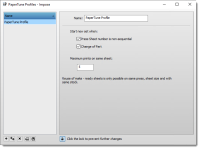 |
Name
The name of the PaperTune Profile.
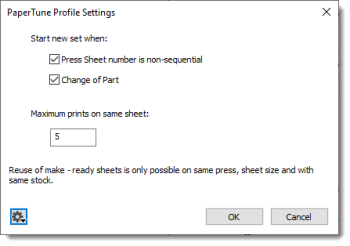
Start new set when
Defines the conditions under which PaperTune starts a new set of make-ready sheets:
•Press Sheet number is non-sequential: Starts a new set when sheet numbers are not consecutive (not +1 compared to the previous sheet).
NOTE: PaperTune handles partial jobs in which sheet numbering has gaps. By default, PaperTune ignores gaps and continues adding sheets to the same set. Enabling this option forces a new set to start after a gap.
•Change of Part: Starts a new set when pages belong to a different part.
NOTE: PaperTune always starts a new set when sheets run on a different press, have a different sheet size, or use different stock.
Maximum prints on same sheet
Defines the maximum number of times a remake sheet can be printed on. This hard limit prevents excessive ink load, feed problems, or related issues. Default value is 5.
PaperTune Selection
The PaperTune Profile is a job wide option available in the Product tab. Selecting a profile enables reuse of make-ready sheets. If a PaperTune-enabled color bar file mark is present and there is sufficient space on the sheet, stepped color bar marks will be applied automatically.
The Imposition bar also allows PaperTune selection:
•None: Do not apply PaperTune
•<PaperTune Profiles list>: A list of PaperTune Profile resources
•Manage PaperTune Profiles: open the PaperTune Profile editor
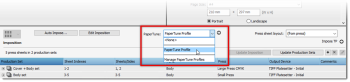 |
Click the arrow next to the profile to open the PaperTune Profile settings. When you change the settings and click Save As in the cogwheel menu, the pop-up displays (Custom). Clicking the drop-down button lists the newly saved profiles.
 |
To disable PaperTune for the entire job, select None. No changes to marks are required.
Product Definition and Inspectors
You can disable PaperTune on some levels of the Imposition structure.
•Product (only useful for multi-product jobs)
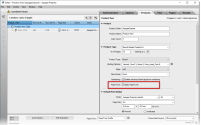 |
•Part (inherits the setting from the Product)
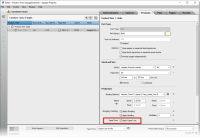 |
•Press Sheet
NOTE: You cannot enable PaperTune on an element unless a PaperTune Profile is selected. You can only disable PaperTune on an element if a profile has been selected.
You can also configure PaperTune via the respective Inspector in Apogee Impose’s Product View.
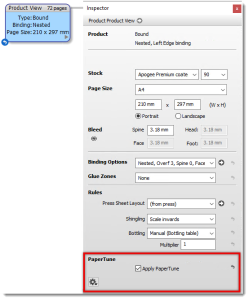 |
•Apply PaperTune: Disables to exclude press sheets containing elements from the current item from remake-reuse.
NOTE: This option is disabled when you have not selected a PaperTune Profile.
•Revert arrow: Restores the setting defined at the parent level.
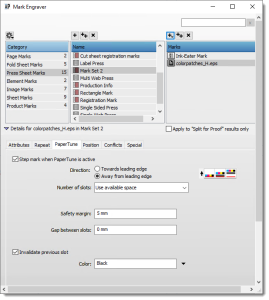
PaperTune Stepper
The PaperTune Stepper is an additional tab in the File Marks section. It prepares the mark for stepping via PaperTune. If no profile is selected or PaperTune is disabled for the current press sheet, the mark remains in its default (non-stepped) position. Refer to “PaperTune tab”.
 |
doc. version 14.0.1