Offline Jobs
An offline job contains all the data of an online job, including results, status, and metadata. The key difference is that an offline job is not loaded into memory and is not processed by the Asanti server. Offline jobs are excluded from the general Jobs list. As a result:
•They do not appear in the Jobs list
•They are not visible in web applications such as WebApproval and WebFlow
•They are not shown in PlateMaker
•Notifications and messages related to offline jobs are hidden.
NOTE: Offline Jobs feature requires a special license.
To put the jobs offline
1 In the Job List, select the job(s) you want to put offline by pressing CTRL and clicking the job(s).
2 Right-click in the highlighted area and choose Put Job(s) Offline from the context menu.
OR
Choose File > Put Job(s) Offline from the main menu.
To work with Offline Jobs
1 Choose File > Offline Jobs from the main menu.
2 The Offline Jobs dialog box opens, displaying a list of offline jobs along with their details.
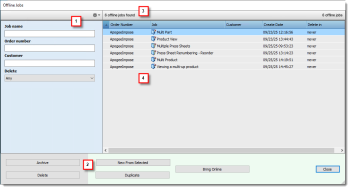 |
1 Filter panel 2 Action buttons 3 Status bar 4 Main panel |
Filter panel allows you to define filter criteria to narrow down the list of offline jobs shown in the main panel. You can filter the list by entering one or more criteria in this panel.
Action Buttons panel contains available action buttons. These are only enabled when one or more jobs are selected.
•Bring Online: Loads an offline job and sets it to the online state, preserving its previous status and settings. The job will reappear in the Jobs list.
•Duplicate: Creates a new job by duplicating the selected offline job. The result is identical to duplicating a job in the online state.
•New from Selected: Generates a new job using the ticket template of the selected offline job. This behaves the same as creating a new job from a selected online job.
•Note: This action can only be performed on one job at a time. If multiple jobs are selected, the command is disabled just as with online jobs.
•Delete: Removes the offline job from the system. If the job is marked for archiving and is finished, it will be archived before deletion. This behavior is consistent with online jobs.
•Archive: Archives the selected offline job. The result is the same as archiving a job in the online state.
•Close: Closes the dialog without applying changes or triggering any actions.
Status bar displays the number of jobs currently shown (after filtering) and the total number of offline jobs.
Main panel shows a sortable list of offline jobs. You can sort by clicking column headers such as Order Number, Job, Customer, Create Date, and Delete In.
3 To perform an action, select one or more jobs and click the corresponding action button. Alternatively, you can close the dialog without taking any action.
doc. version 7.0.1